
Calendar Sync
Connect your Google Calendar or Outlook to automatically block busy times and export LeyApp bookings.
Last updated: February 21, 2026
What is calendar sync?
Calendar sync lets you connect your external calendar (Google Calendar or Microsoft Outlook) to LeyApp. Once connected, your busy times are automatically imported to block those slots from client bookings, and confirmed LeyApp bookings can be exported to your external calendar.
This feature helps prevent double-bookings and keeps all your appointments in one place.
Connecting your calendar
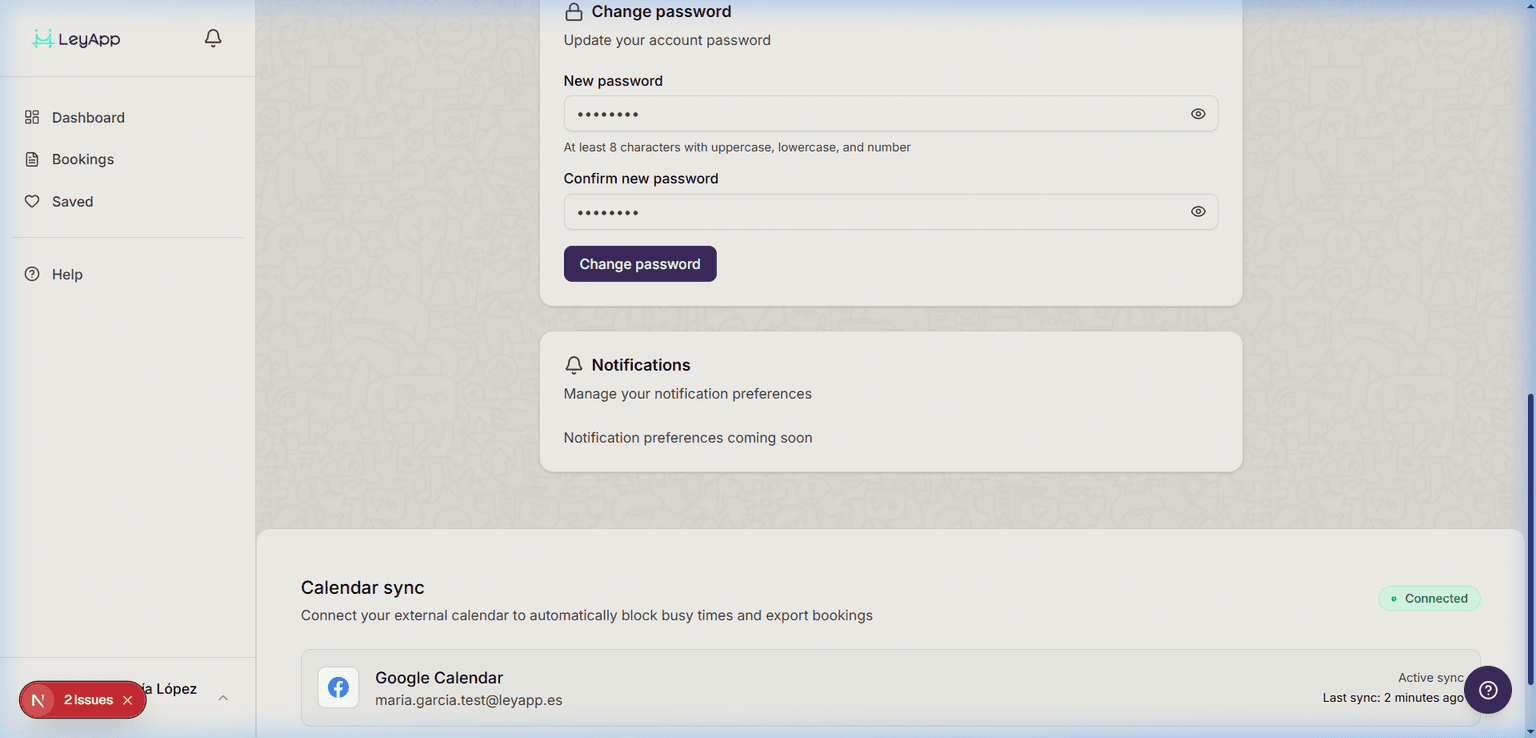
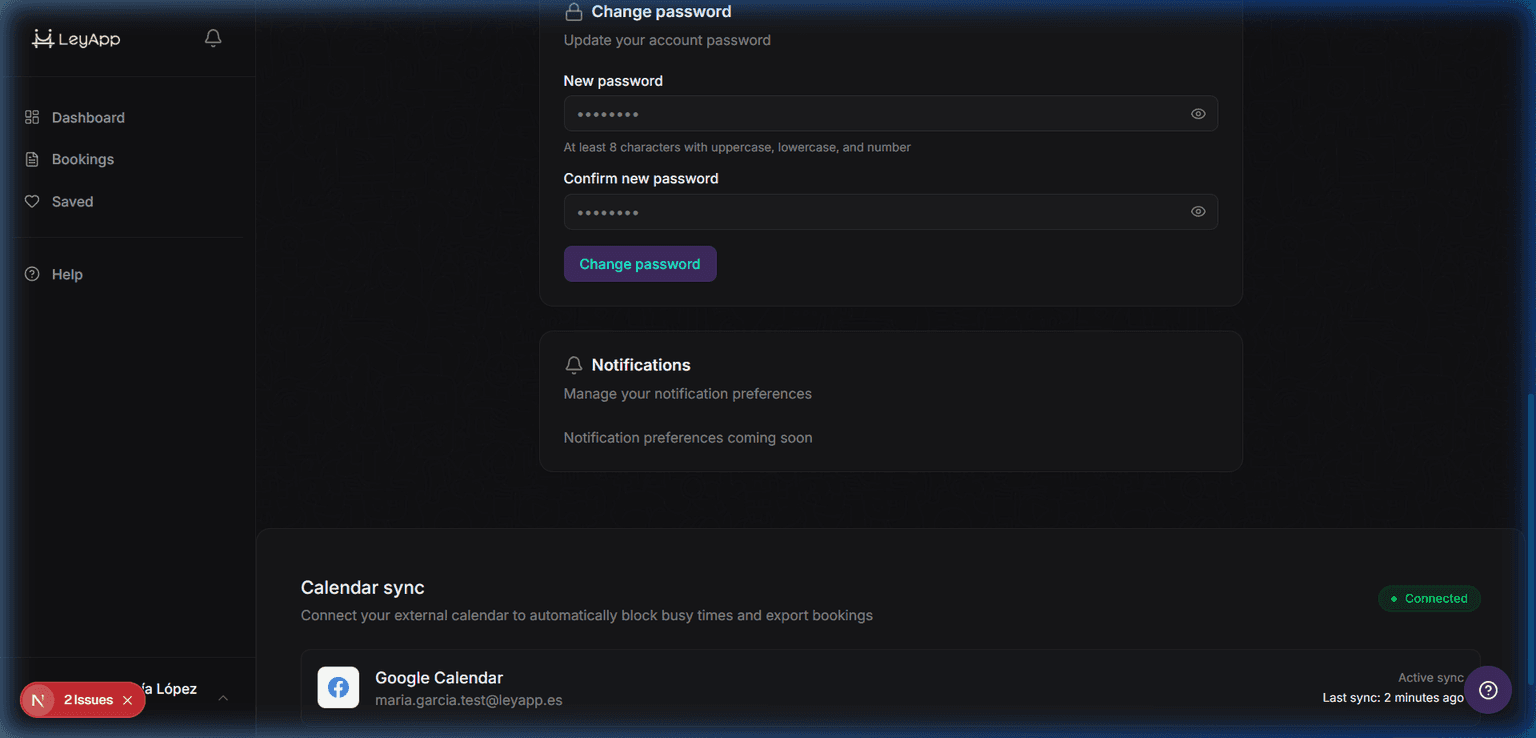
Go to Settings from your dashboard sidebar, then find the Calendar Sync section. You will see options for Google Calendar and Microsoft Outlook.
Click the connect button for your preferred provider. You will be redirected to authorize LeyApp to access your calendar. Once authorized, you will be returned to Settings with your calendar connected.
Import and export settings
Once connected, you can toggle two settings independently:
- Import events — When enabled, LeyApp imports your external calendar events and automatically blocks those time slots in your availability. This prevents clients from booking during times when you're busy.
- Export bookings — When enabled, confirmed LeyApp bookings are automatically added to your external calendar so you can see them alongside your other appointments.
Syncing your calendar
Calendar sync runs automatically in the background. You can also trigger a manual sync at any time by clicking the 'Sync now' button in the Calendar Sync settings.
The last sync time is displayed next to each connected calendar so you can confirm it's up to date.
For best results, keep both import and export enabled. This ensures your availability is always accurate and your bookings appear in your main calendar.
Disconnecting a calendar
To disconnect a calendar, click the disconnect button next to the connected provider. This will remove all imported blocks from that calendar. Your LeyApp availability slots are not affected — only the imported external blocks are removed.
Troubleshooting
If you see a sync error, try disconnecting and reconnecting your calendar. Make sure you have granted LeyApp the necessary permissions during the authorization step.
If events are not appearing, check that the import/export toggles are enabled and click 'Sync now' to force a refresh.