
Account & Settings
Manage your profile information, language preferences, password, and professional details.
Last updated: March 22, 2026
Accessing your settings
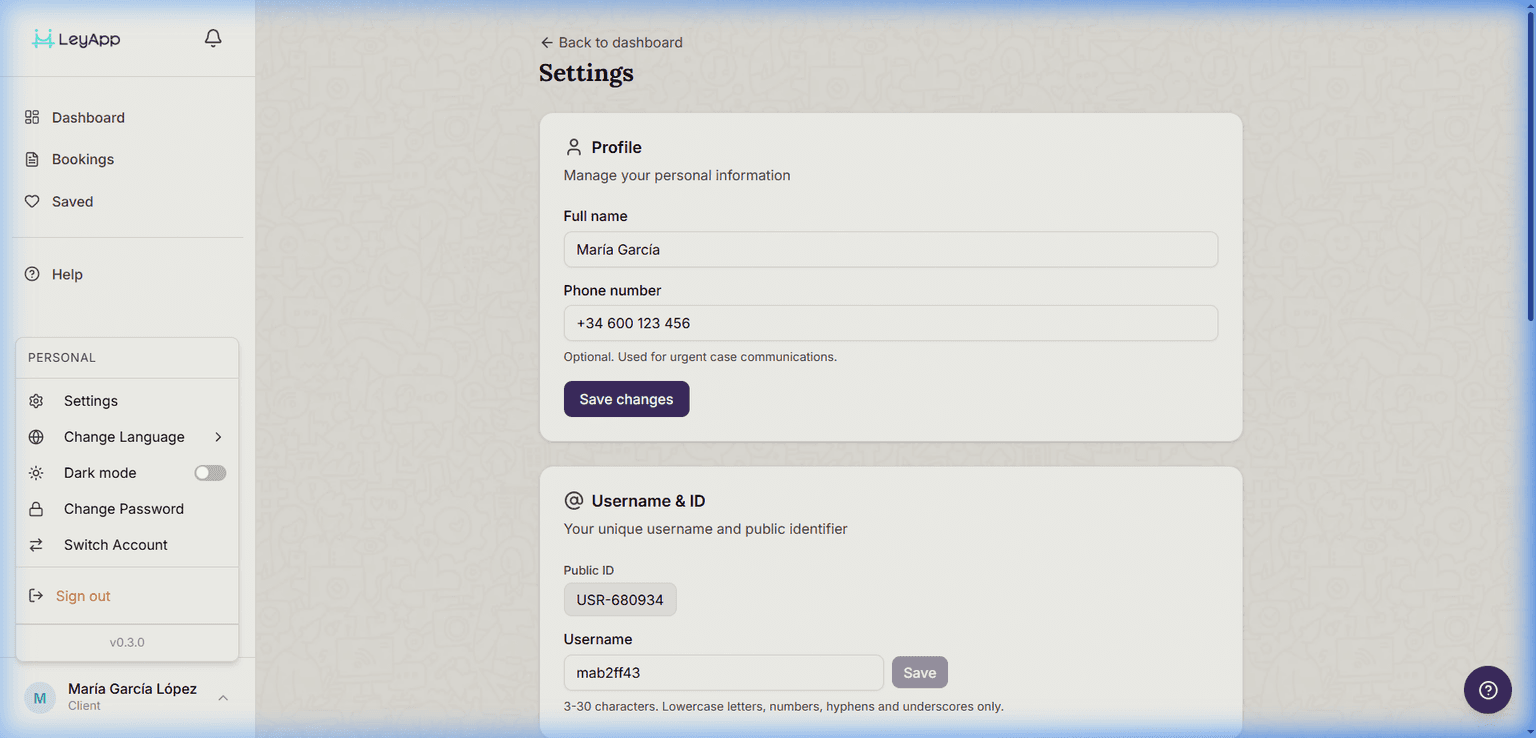
Click the Settings icon in the dashboard sidebar to access your account settings. The settings page uses a collapsible sidebar menu — click a section (General, Security, Notifications, Practice) to expand it and see its options. Click a different section to switch.
Profile settings
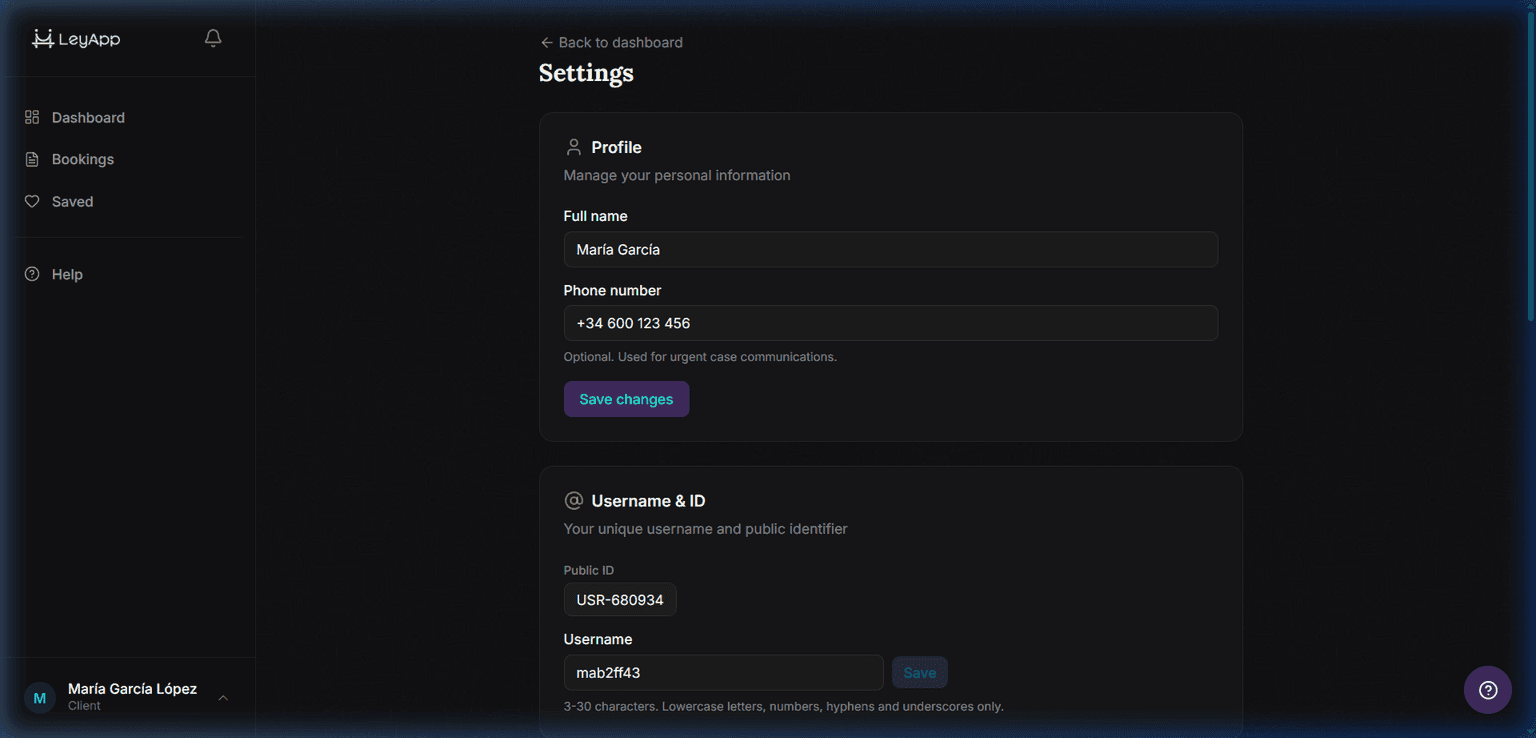
In the Profile section, you can update your display name and phone number. Changes are saved immediately when you click the save button.
Your profile information is used across the platform — in the dashboard greeting, booking confirmations, and communication with lawyers or clients.
Language settings
LeyApp is available in 6 languages. You can change your interface language at any time from Language under General in Settings.
You can also switch languages using the language selector in the navigation bar on any page. Your preference is saved and persists across sessions.
Available languages
- Spanish (Español) — Default language
- Catalan (Català)
- English
- French (Français)
- Arabic (العربية) — Right-to-left layout supported
- Swahili (Kiswahili) — Beta
Password settings
Change your password from the Password section under Security. You will need to enter your new password and confirm it. If you signed up with a social login (Google, Microsoft, Apple), you may not have a password set — you can add one here.
Use a strong, unique password with at least 10 characters, including a symbol. Avoid reusing passwords from other services.
Notifications
Email and push notification preferences will be available soon. Stay tuned for updates on booking reminders, status changes, and platform announcements.
Calendar sync (lawyers only)
If you are a lawyer, the Settings page includes a Calendar Sync section where you can connect your Google Calendar or Microsoft Outlook account.
Once connected, you can toggle import (block busy times from your external calendar) and export (add confirmed LeyApp bookings to your external calendar). You can also trigger a manual sync and see the last sync timestamp.
Professional profile (lawyers only)
The fastest way to edit your public profile is to open it directly — click 'My profile' in the avatar dropdown, or go to /lawyer/your-username. You'll see the profile exactly as clients do, with an owner toolbar at the top and edit buttons on each section. For the full walkthrough, see the 'Edit Your Profile In-Place' article.
You can edit your bio, reservation fee, service description, professional disclaimer, years of experience, office address, areas served, client FAQ, specialties, languages spoken, bar association memberships, and profile photo — all in-place on your public profile. A progress meter in the toolbar tracks completeness and flags missing sections. Keep your profile at 90%+ to attract more clients.
Security settings
LeyApp supports passkeys (biometric login) and two-factor authentication (2FA) for enhanced account security. You can set up passkeys to sign in with Face ID, Touch ID, or fingerprint — no password needed.
You can also enable 2FA with an authenticator app for an additional layer of protection. For the full guide on setting up passkeys and 2FA, see our Security & Privacy article.
For detailed instructions on passkeys, 2FA setup, and data privacy, see our Security & Privacy article in the Trust & Security category.