
Managing Bookings as a Lawyer
Learn how to view, approve, decline, and complete bookings from your lawyer dashboard.
Last updated: March 8, 2026
Booking management overview
As a lawyer on LeyApp, you receive booking requests from clients who want to schedule a consultation. You manage these requests from the Bookings section of your dashboard.
Each booking request includes the client's name, preferred time slot, any notes they have provided, and the reservation fee. You can approve, decline, or propose an alternative time.
Viewing your bookings
The Bookings page displays all your booking requests organized by status. You can filter by status to quickly find pending requests that need your attention.
Each booking card shows the client name, requested date and time, status, and fee amount. Click on any booking to see full details and take action.
Booking status filters
- All — View every booking regardless of status
- Pending — New requests awaiting your response
- Approved — Bookings you have confirmed
- Completed — Past consultations that have been finished
- Declined — Requests you have turned down
Approving a booking
When you approve a booking, you confirm the client's requested time slot. The client will be notified and the payment will be captured.
If the client proposed multiple time slots, select the one that works best for you. You can also add a note for the client with any preparation instructions.
Declining a booking
If you cannot accept a booking, you can decline it with an optional note explaining why. The client's payment hold will be released and they will be notified.
Respond to booking requests as quickly as possible. Clients appreciate timely responses, and it helps build your reputation on the platform.
Marking a consultation as completed
After a consultation has taken place, mark it as completed from the booking detail page. This triggers the payment transfer to your account and allows the client to leave a review.
Tracking your earnings
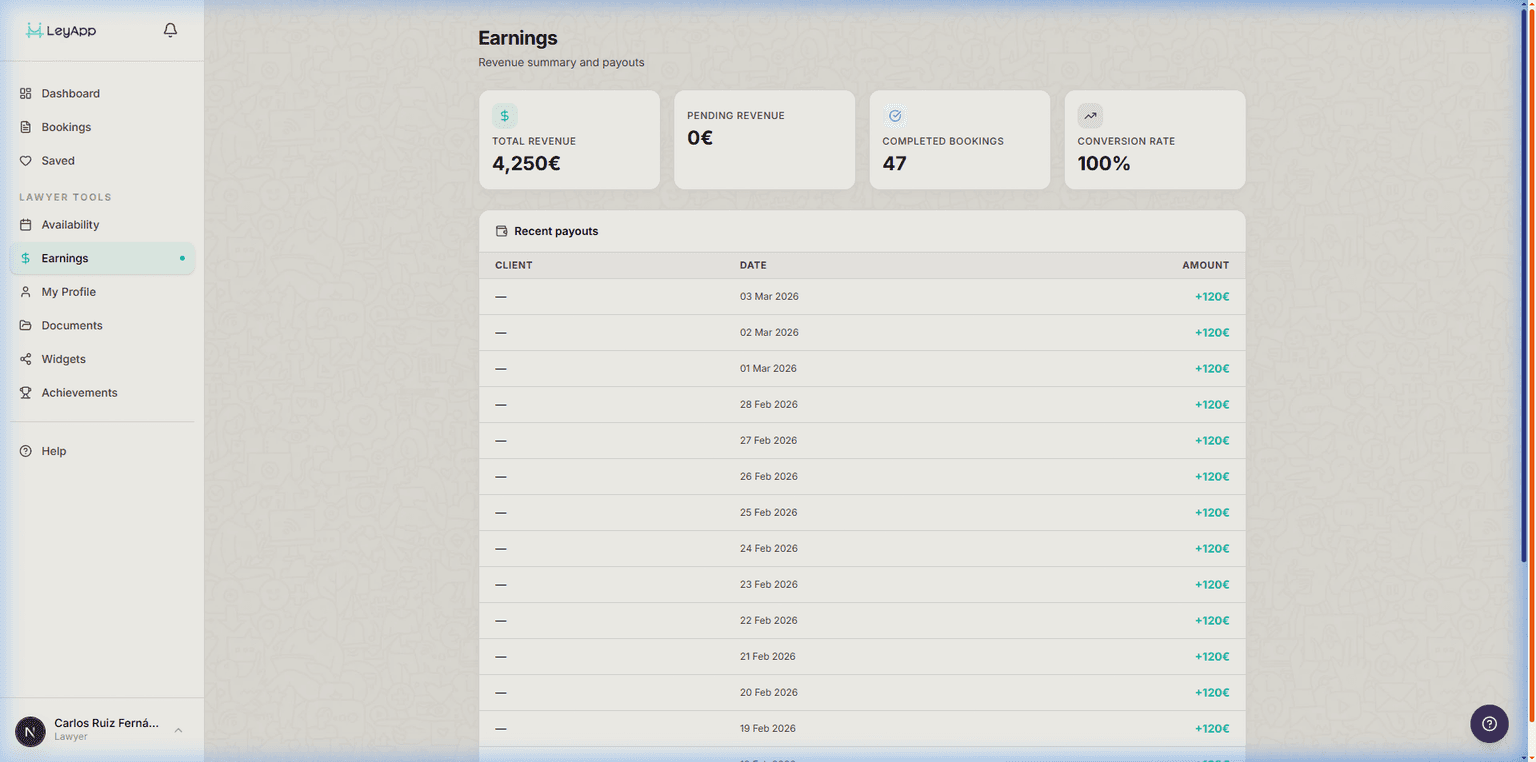
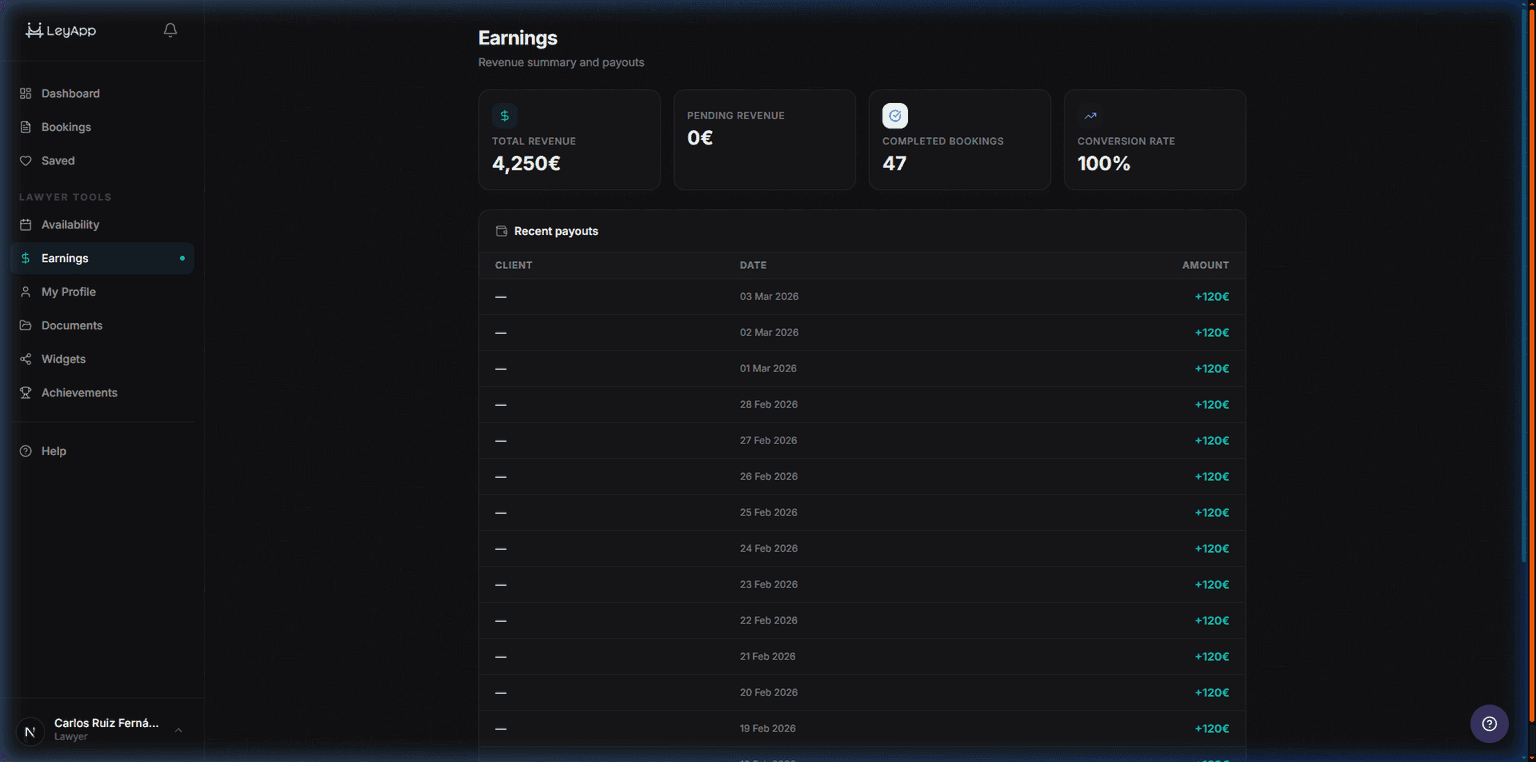
Visit the Earnings section of your dashboard to see your revenue summary. The page shows total earnings, pending payouts, completed consultations count, and your average rating.
Payments are processed through Stripe Connect. Make sure your Stripe account is connected and fully set up to receive payouts.
When a client cancels
When a client cancels a booking, you'll receive a notification. Your time slot is automatically freed up for other clients. The cancellation policy determines the client's refund — you don't need to take any action.
If a client cancels within 24 hours of the consultation, they receive a 50% refund and you receive 50% of the fee (minus service fee). For cancellations 24+ hours before, the client receives a full refund.
If you fail to attend a confirmed consultation, the client receives an automatic full refund and the no-show is recorded on your account. Repeated no-shows may affect your standing on the platform.
Handling reschedule requests
Clients can request to reschedule an approved booking. When they do, you'll see the proposed new date and time in the booking detail page. You can accept the new time or decline to keep the original time.
You can also initiate a reschedule yourself — for example, if an emergency comes up. The client will receive a notification and can accept or decline your proposed time.
Rescheduling is better than cancelling for both parties. It preserves the booking relationship and avoids cancellation fees. Each booking allows up to 3 reschedules.
How refunds affect your earnings
When a booking is cancelled with a full refund (24+ hours before or lawyer no-show), the payment is fully returned to the client and no fee is earned.
For late cancellations (within 24 hours), 50% of the fee goes to the lawyer (minus service fee) and 50% is refunded to the client. You can view all refund-affected bookings in your Earnings section.