
Availability Calendar
Learn how to set up and manage your availability so clients can book consultations with you.
Last updated: February 21, 2026
What is the availability calendar?
The availability calendar is where you define when clients can book consultations with you. It combines a weekly working-hours schedule, day-by-day adjustments, holidays, vacations, and external calendar sync — all in one place.
Only verified lawyers can set availability. Clients see your slots when booking, so keeping your calendar accurate is essential for receiving bookings.
How to access the calendar
From your lawyer dashboard, click 'Availability' in the left sidebar. A side panel on the left shows a mini month calendar for quick navigation, and the main area shows the active tab.
Click any day in the side-panel calendar to jump to it, or click the month title to open a month picker.
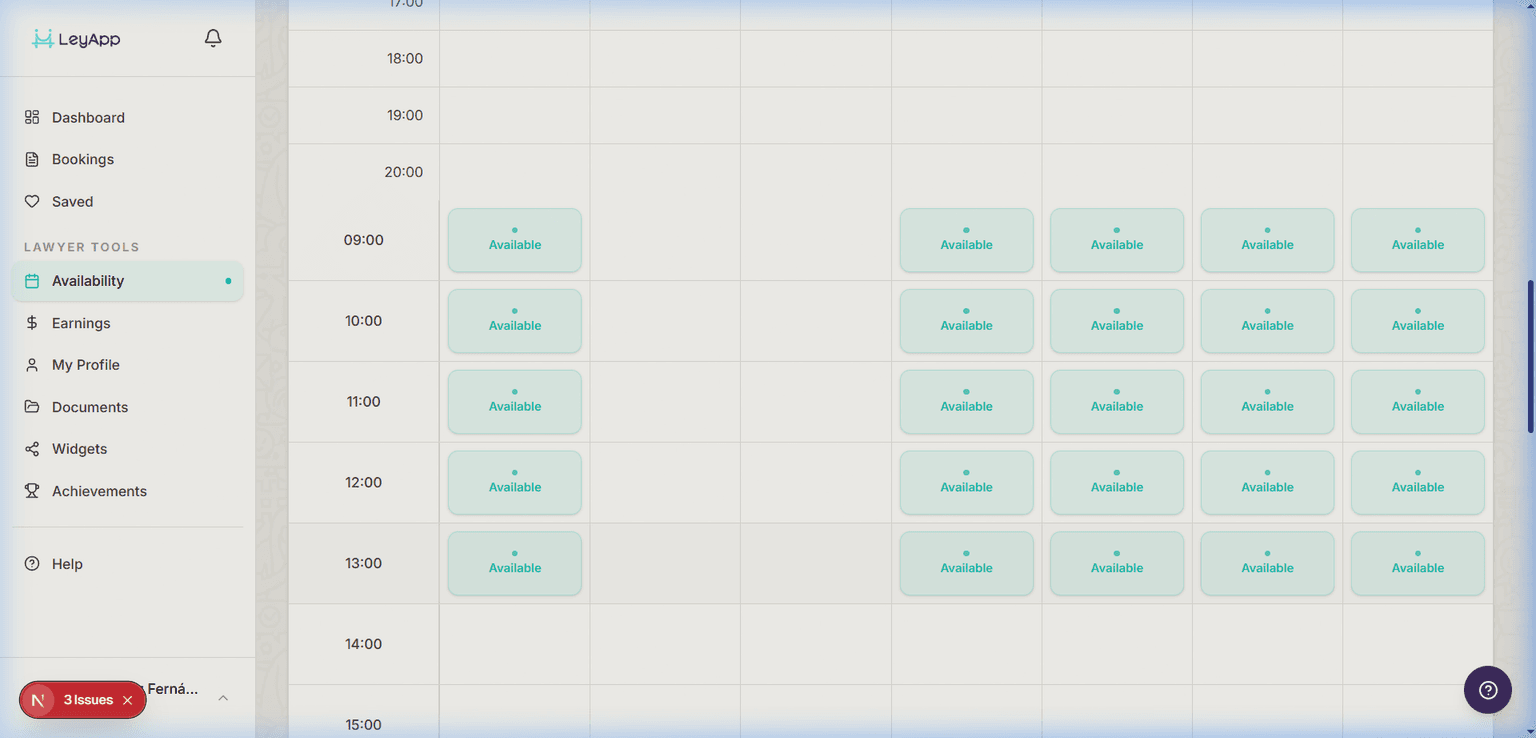
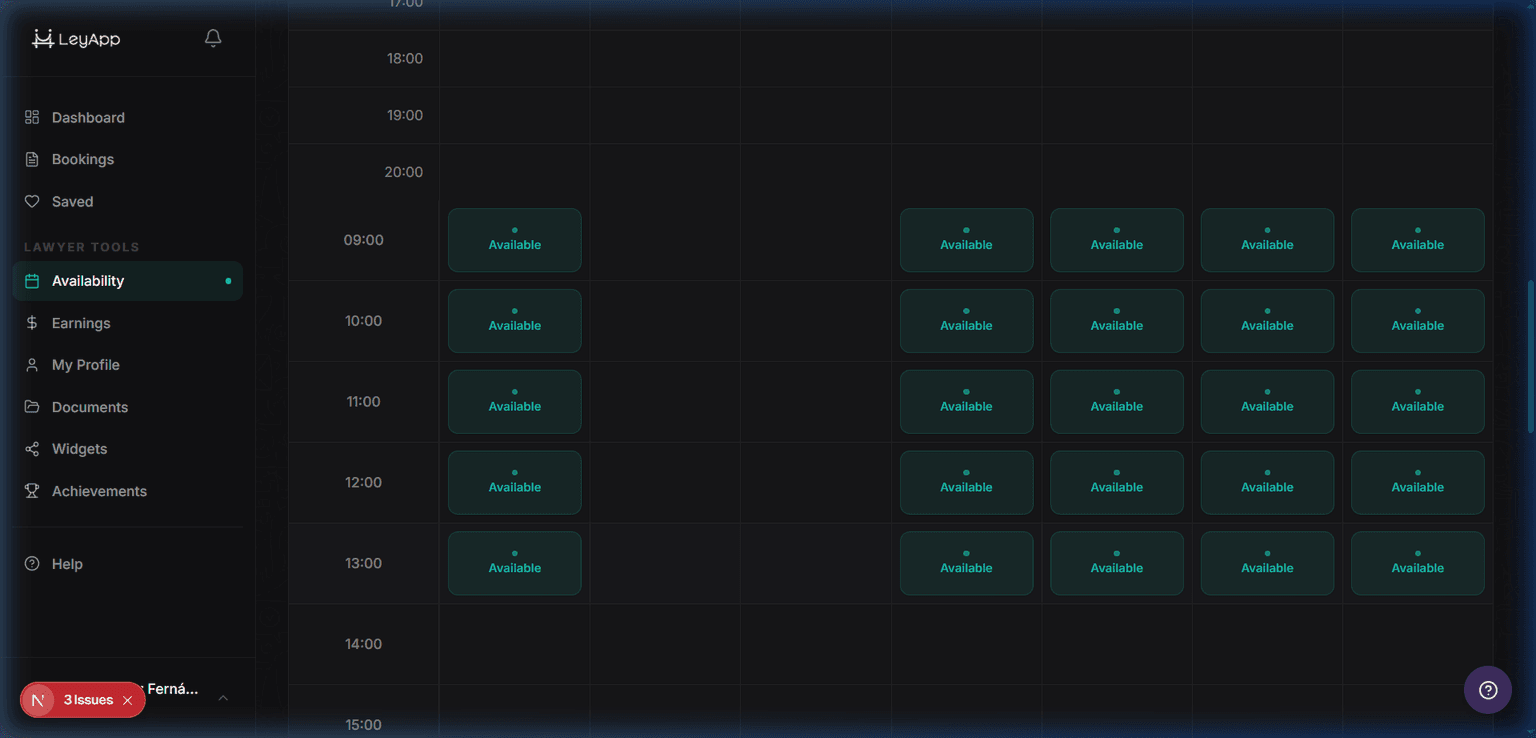
The five tabs explained
Working Hours: define your recurring weekly schedule — which days you work, time blocks per day (e.g. 9:00–13:00 and 15:00–19:00), session duration, buffer between consultations, and minimum notice for bookings.
Daily: see a specific day's hourly timeline with your working hours, bookings, and external calendar blocks. Click any hour to toggle it on/off, mark the whole day off, or download bookings as a calendar file.
Monthly: a color-coded month-grid overview. Holidays: choose to work or block each national holiday. Time Off: add multi-day vacation ranges. Calendar Sync: connect Google or Microsoft.
Setting your weekly schedule
- Go to the Working Hours tab.
- For each day of the week, toggle 'Working' on and define one or more time blocks (e.g. 09:00 to 13:00).
- Set your session duration (15/30/45/60/90/120 min), buffer between consultations, and minimum booking notice.
- Click Save. Your weekly schedule now drives the slots clients can book.
INTERACTIVE DEMO
~3 min· 4 stepsSet Up Your Availability
Learn how to set your weekly availability: configure working hours, session duration, minimum notice, and save.
Navigating dates
In the Daily tab, use the left/right arrows to move one day at a time, or click the date title to open a native date picker and jump to any day.
The side-panel month calendar on the left shows dots for each day's status: green for available, purple for holidays, rose for days you've marked off, sky blue for vacation ranges.
Keep your Working Hours accurate, then use the Daily tab for one-off changes. This way you won't need to edit your schedule week by week.
Editing specific days
On the Daily tab, click any hour row to toggle it available/unavailable for that date only. Pending changes show a dashed border and a pulsing dot until you click Save.
If you need to block a whole day, use the 'Mark day off' button in the header — this is the right tool when you'd otherwise need to toggle every hour off manually. See the Marking Days Off article for details.
Quick actions on the Daily tab
- Click slot → toggle available/unavailable (pending until saved).
- Mark day off → block the whole day with options to keep specific hours and cancel or keep bookings.
- Download .ics → export your bookings for the day, week, or month to add to any calendar app.
How clients see your availability
When a client views your public profile, they see only the slots you've marked as available. No working hours = no bookings. The slot duration they pick matches the session length you set.
Confirmed bookings appear in your Bookings section. From there you can approve, decline, or propose alternative times.
If you've connected an external calendar (Calendar Sync tab), blocked times from Google/Microsoft appear in the Daily view with a lock icon and a provider badge. These blocks are read-only — to change them, edit the event in the source calendar and trigger a sync.
LeyApp syncs with Google Calendar and Microsoft Outlook. See the Calendar Sync article for setup instructions.